When I first came to Japan, I signed up for service with AU, and picked up the Sony Erricson W42S Walkman phone. It was fantastic: it played music with ease, had a great screen for video, was simple and compact, and styling superb.
My only problem with it was the software. Sony and AU both enjoy making users go through all sorts of hoops in order to protect their IP, such that it makes the product nearly useless. Complicating the matter was the fact that the software was only available in Japanese. It drove me nuts. AU's software in particular was so bad, that it would even refuse to install on Windows unless it was a Japanese version.
I HAD to gain access to all those cool features, for which I fell in love with the phone in the first place. So I set out on several adventures in 'bypassing' certain basic procedures apparently designed to confuse people. Few of these jobs could technically be called "hacking." Most of them were simply discovering how to get around stupid measures taken by both companies designed to confuse people, such as switching your international settings in Windows to temporarily allow installing the software, or dropping files into hidden folders on the memory stick in order to get your own movies to play without paying extra for additional software.
I figured that if I were having trouble with the phone, than surely many other foreign customers were in the same boat. Sure enough, with a little bit of advertising on the various cell-phone fan sites, people starting asking me lots of questions. So, in a way, I became an unofficial English help line troubleshooter for AU and Sony.
The results of which are cataloged in the following blogs:
w42s.blogspot.com
w52s.blogspot.com
The posts have also been merged with THIS blog. You can find them by clicking the related links on the left.
Showing posts with label Sonic Stage. Show all posts
Showing posts with label Sonic Stage. Show all posts
Tuesday, March 30, 2010

Monday, December 10, 2007
SONIC STAGE!!!
Merry Christmas Everyone!
Here is my gift to you - Getting Sonic Stage to work with the W52S!!
BONUS - Works with Duogate AND MICRO SD!!!
Wow. I finally figured this whole deal out. (I am sketchy on a few parts, but I took the 'do it all, because some of them are important, and the others wont hurt' approach.)
This one will be a lengthy/complex procedure so lets get everything together:
1: you need your W52S CD. If you do not have it, please message me and I will email or post the particular package you need.
2: Phone, Cradle, and USB cable (naturally)
3: Duogate OR MicroSD card installed.
Ok, here we go:
1: Download and install Sonic Stage from: http://sonicstage.connect.com/SS-US.zip
(unzip, run the install file. follow directions.. easy)
2: Insert your W52S CD.
3: Explore to: CD:\utility_softwares\SonicStage_CP
4: You will find a single EXE file here. DO NOT RUN THIS FILE! It will simply report back that it cannot install on a non-Japanese OS.
Instead you need to do the following:
If you get this far, and it works, please let me know. If not, then continue exploring the folder you made. You will find SEVERAL install packages. I went through and hit them all, just in case.
I hope this works out for everyone and you can enjoy using SS and dump your crappy AMP intall!
A quick review of the projects checklist: (all of these are without AMP, and on MicoSD cards)
Here is my gift to you - Getting Sonic Stage to work with the W52S!!
BONUS - Works with Duogate AND MICRO SD!!!
Wow. I finally figured this whole deal out. (I am sketchy on a few parts, but I took the 'do it all, because some of them are important, and the others wont hurt' approach.)
This one will be a lengthy/complex procedure so lets get everything together:
1: you need your W52S CD. If you do not have it, please message me and I will email or post the particular package you need.
2: Phone, Cradle, and USB cable (naturally)
3: Duogate OR MicroSD card installed.
Ok, here we go:
1: Download and install Sonic Stage from: http://sonicstage.connect.com/SS-US.zip
(unzip, run the install file. follow directions.. easy)
2: Insert your W52S CD.
3: Explore to: CD:\utility_softwares\SonicStage_CP
4: You will find a single EXE file here. DO NOT RUN THIS FILE! It will simply report back that it cannot install on a non-Japanese OS.
Instead you need to do the following:
- Right Click on the file and choose Extract files. You will then be able to make a folder somewhere to extract the files to. I reccomend Either a new folder on your desktop, or a new folder in the root of your C drive.
- Find the folder you extracted to. I called it C:\SSinstall. Inside you will find several sub folders. Go to C:\SSinstall\Common\OpenMG.
- Run Is_setup.exe and follow the directions.
- If you have not already installed the USB driver, go to C:\SSinstall\Device\Driver\W52S and do so. (You might want to do it just in case, as it may only now make Sonic Stage aware of the device.)
If you get this far, and it works, please let me know. If not, then continue exploring the folder you made. You will find SEVERAL install packages. I went through and hit them all, just in case.
I hope this works out for everyone and you can enjoy using SS and dump your crappy AMP intall!
A quick review of the projects checklist: (all of these are without AMP, and on MicoSD cards)
- Convert and upload/watch video (full length movies in widescreen, using Image Converter 2) - check
- Download photos and video from camera - check
- Upload PDF files and view them - check
- Convert and upload photos (using Image Converter 2) - check
- Convert and upload music with Sonic Stage - check
- Upload and run games and third party applications - still to do
- Offer support for MAC (I dont have access to one, and wouldn't know where to start. Sorry to all you MAC users) - still to do
- Write user guides for GPS functions - still to do
- Write user guides for EZweb functions - still to do
- Write guide for subscription services (TangoTown, LastTrain search, etc) - still to do
Sunday, January 7, 2007
Some helpful hints
In response to some feedback:
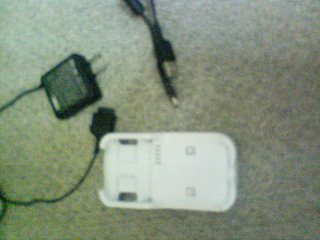
This is the cable kit I received with the phone. On the left is the power adapter and above is the typical USB to miniUSB cable. Both the power cable and miniUSB cable plug into the white cradle from behind, and the phone drops in. Neither cable directly connects to the phone.
Cradle PN 42SOPUA
power supply PN 0202PQA
The USB cable they show here looks like it connects to the side of the phone, and would only charge (likely the same cable you have PN 0201HVA). The cable for the cradle is just a standard USB to miniUSB like with most digital cams and mp3 players.
You might not be able to connect the phone directly to a laptop via a cheap store cable to download. I do not have one to test, but I will try to go get one. In fact, my charger cable has no where to directly connect to the phone, nore does the MiniUSB.
Are you connecting your cable to the left side port that has a slide cover? This is also the port where the headphone adaptor connects. It has a lot of pins, so it is possible that it is chargable via that connector, and yet not have download support.
My best advice without having the cable you have, would be to try to get the full cradle kit.
One more thing you MUST do:
On the phone, go to Functions/Settings
Press 5 (user support)
Press 6 (Data Comm)
Press 3 (USB mode select)
select 3 (User Select)
Now everytime the phone is hooked to the computer, the phone will ask you to choose Data Trasfer or Mass Storage mode.
The default is Data Transfer which is only for au Audio Music Port. It will keep attempting to run that program, and will not let you do anything on the phone without it.
Mass Storage mode will make it act like a normal USB storage device, and allow Sonic Stage to find it. Remember, you only have access to the MMC card, and not the phones primary memory.
As for Sonic Stage, I am using Version 4.2 as well.
Im glad someone is finding the information usefull. Feel free to keep asking questions.
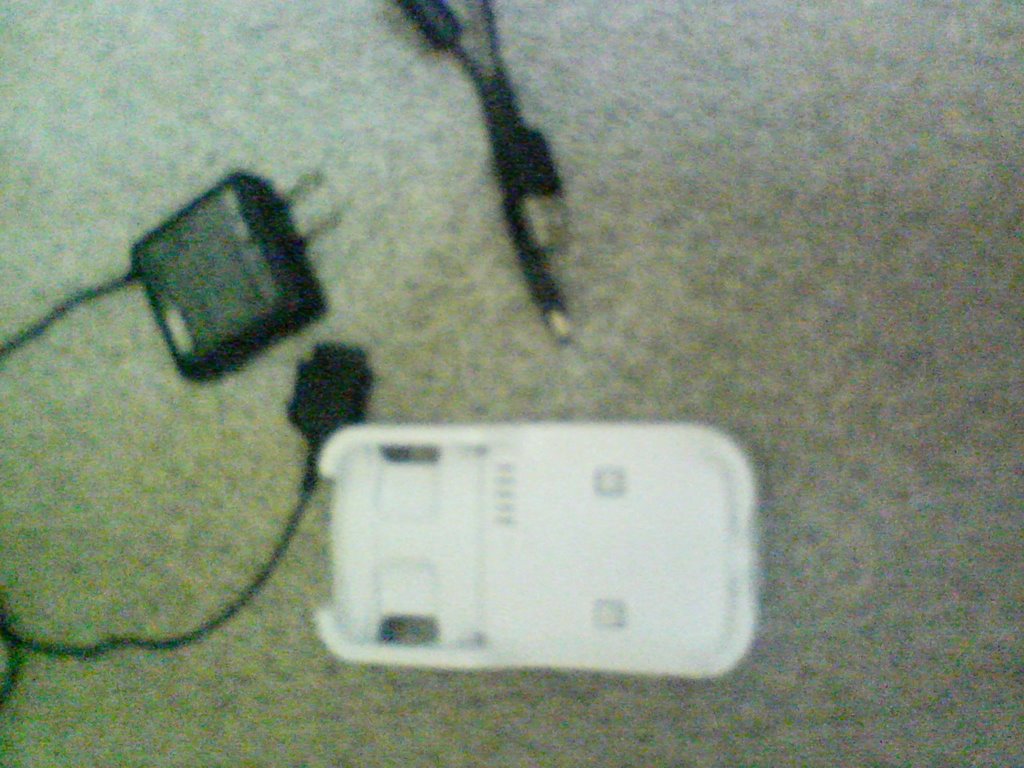
This is the cable kit I received with the phone. On the left is the power adapter and above is the typical USB to miniUSB cable. Both the power cable and miniUSB cable plug into the white cradle from behind, and the phone drops in. Neither cable directly connects to the phone.
Cradle PN 42SOPUA
power supply PN 0202PQA
The USB cable they show here looks like it connects to the side of the phone, and would only charge (likely the same cable you have PN 0201HVA). The cable for the cradle is just a standard USB to miniUSB like with most digital cams and mp3 players.
You might not be able to connect the phone directly to a laptop via a cheap store cable to download. I do not have one to test, but I will try to go get one. In fact, my charger cable has no where to directly connect to the phone, nore does the MiniUSB.
Are you connecting your cable to the left side port that has a slide cover? This is also the port where the headphone adaptor connects. It has a lot of pins, so it is possible that it is chargable via that connector, and yet not have download support.
My best advice without having the cable you have, would be to try to get the full cradle kit.
One more thing you MUST do:
On the phone, go to Functions/Settings
Press 5 (user support)
Press 6 (Data Comm)
Press 3 (USB mode select)
select 3 (User Select)
Now everytime the phone is hooked to the computer, the phone will ask you to choose Data Trasfer or Mass Storage mode.
The default is Data Transfer which is only for au Audio Music Port. It will keep attempting to run that program, and will not let you do anything on the phone without it.
Mass Storage mode will make it act like a normal USB storage device, and allow Sonic Stage to find it. Remember, you only have access to the MMC card, and not the phones primary memory.
As for Sonic Stage, I am using Version 4.2 as well.
Im glad someone is finding the information usefull. Feel free to keep asking questions.
Thursday, January 4, 2007
Using American version of SonicStage
Many people have questions about the Sony Ericsson W42S Walkman phone currently in use by AU/KDDI.
I will attempt to dispel some myths, confirm a few others, and then walk you through the process of getting it working with American versions of XP in (some) English.
The phone:
The phone is one of the few entry level AU phones with English menu options. It has a ‘music’ player (I say that because it is not true MP3, it has to be converted first), a radio tuner, a 3 mega pixel photo and short video camera (with sound and lowlight mode), GPS map location (via web), as well as typical schedule, note, and voice recording capabilities. Note that the GPS likely won’t work anywhere but Japan. The maps are downloaded from the web each time you use it.
It comes with 1 gig of internal memory and has a slot for a Duo MMC. These are the same cards used in PSPs.
Finally, a SIM card rounds out the phone giving it account transfer and global access possibilities. Although, I doubt very many places have compatible service providers.
Memory options:
First I few things about ‘internal’ verses MMC memory:
Yes, the phone comes with a gig of memory built in. Without an MMC card installed, this memory is multi-purpose. It stores applications, music, photos, and video. It is the ‘catch-all’ memory when the user has nothing else installed.
This is NOT the way to get the best use from the phone.
It is advisable that you install a Duo card in the phone. In fact, the process I am about to outline for you won’t work without one, so don’t bother if you don’t have a card installed.
Now, considering the fact that the phone is free with new accounts, or a cheap price upgrade to existing AU customers, the cost of a gig memory card (about $70) makes it all worth it.
What goes where?
With your newfangled Duo card installed, you might be asking: What’s the point?
The point is the phone changes its storage priorities once the card is installed. From now on, photos will get stored to the card. They can however be moved to the phone if you so choose, but there is no point to that, other than saving space for music. Video/audio captures will remain in the phone’s memory due to access speeds required to save and play back that content smoothly. Additionally, any music downloaded from AU music source will also be stored in the phone. To review:
Stored on the phone (1 Gig):
Video
Voice recordings
Downloaded songs
Applications
Stored on the MMC (up to 1 Gig [will likely hold more]):
Photos
User loaded music
General purpose file folder system (USB disk drive)
Ok, so you have your phone, and you have your MMC. You should also have a docking/charging station and the installation CD from AU. How do you get this thing working in English, or at least Engrish?
Steps to Get SonicStage to work with W42S:
1: Explore the AU cd
2: look in the data_communcation_tools\exe folder
3: Run and install:
a: W42S-setup1000
b: aupsetinst
NOTE: an alternate way to get W42S-setup1000 is to Explore the CD to SonicStage CP, and EXTRACT the setup file there. Then Explore to:(Extract root)\SetupSonicStage\Device\Driver\W42S
I have checked hash difference and they appear to match. However I am not guaranteeing that they are the exact same file (hard to mod a file without mod-ing the hash though).
4: open your favorite browser and point it to:
http://musicstore.connect.com/custom/promos/download.html
Now.. Assuming you live in Japan, downloading won’t work for you. Notice about halfway down there is a link that says “Having trouble downloading SonicStage CP? Please click here.”
You are on your own there now.. ;)
5: Install SonicStage English version and reboot.
6: At this point, plug in your phone, and make sure it comes up as a USB drive (choose MassStorage mode on the phone)
In my case, I have Music Port installed as well, so you have to tell it to quite that application.
7: Run SonicStage. It should start up with two panels, the one on the right called “au W42S (drive#)”
EDIT: it may start with only on panel untill you get everything set up for the phone!
8: In SS, go to Tools/Options/Transfer and you should see:
Memory Stick/Network Walkman/Portable IC Audio Player
Choose it and hit Transfer Settings
9: Select ATRAC3 transfer and OK out of both dialogs.
You are now ready to put some tunes in your phone. Remember that SS must convert the files to a format the phone can read. Conversion doesn’t take that long.
I do not know if downloaded music from AU is also in this ATRAC format or not.
Getting your photos:
Simply explore to the DCIM folder on the phone, copy and paste. Easy.
Playing your tunes:
On the phone, go to the Memory Stick folder, then Music folder.
Caveats:
Playing this way does not use the ‘player’ functionality of the phone. So, the Jog wheel and screen modes don’t work. Its sort of a let down that those features only work via downloaded music from AU or perhaps loaded with auMusicPort.
AU Music Port:
I also have this working on my American XP. It was a bitch to set up, and took a few days. I did It like, two months ago so I don’t exactly remember how. I also don’t read Japanese, so need my roommate to translate for me. I have not bothered asking him to help me put music on the phone with it. I would imagine that it will convert and load them to the main folder, and thus use the player controls?
Anyway, if enough people request a tutorial on this, I could get with him and we could write a walk through (it might be good for me to have anyway).
I will attempt to dispel some myths, confirm a few others, and then walk you through the process of getting it working with American versions of XP in (some) English.
The phone:
The phone is one of the few entry level AU phones with English menu options. It has a ‘music’ player (I say that because it is not true MP3, it has to be converted first), a radio tuner, a 3 mega pixel photo and short video camera (with sound and lowlight mode), GPS map location (via web), as well as typical schedule, note, and voice recording capabilities. Note that the GPS likely won’t work anywhere but Japan. The maps are downloaded from the web each time you use it.
It comes with 1 gig of internal memory and has a slot for a Duo MMC. These are the same cards used in PSPs.
Finally, a SIM card rounds out the phone giving it account transfer and global access possibilities. Although, I doubt very many places have compatible service providers.
Memory options:
First I few things about ‘internal’ verses MMC memory:
Yes, the phone comes with a gig of memory built in. Without an MMC card installed, this memory is multi-purpose. It stores applications, music, photos, and video. It is the ‘catch-all’ memory when the user has nothing else installed.
This is NOT the way to get the best use from the phone.
It is advisable that you install a Duo card in the phone. In fact, the process I am about to outline for you won’t work without one, so don’t bother if you don’t have a card installed.
Now, considering the fact that the phone is free with new accounts, or a cheap price upgrade to existing AU customers, the cost of a gig memory card (about $70) makes it all worth it.
What goes where?
With your newfangled Duo card installed, you might be asking: What’s the point?
The point is the phone changes its storage priorities once the card is installed. From now on, photos will get stored to the card. They can however be moved to the phone if you so choose, but there is no point to that, other than saving space for music. Video/audio captures will remain in the phone’s memory due to access speeds required to save and play back that content smoothly. Additionally, any music downloaded from AU music source will also be stored in the phone. To review:
Stored on the phone (1 Gig):
Video
Voice recordings
Downloaded songs
Applications
Stored on the MMC (up to 1 Gig [will likely hold more]):
Photos
User loaded music
General purpose file folder system (USB disk drive)
Ok, so you have your phone, and you have your MMC. You should also have a docking/charging station and the installation CD from AU. How do you get this thing working in English, or at least Engrish?
Steps to Get SonicStage to work with W42S:
1: Explore the AU cd
2: look in the data_communcation_tools\exe folder
3: Run and install:
a: W42S-setup1000
b: aupsetinst
NOTE: an alternate way to get W42S-setup1000 is to Explore the CD to SonicStage CP, and EXTRACT the setup file there. Then Explore to:(Extract root)\SetupSonicStage\Device\Driver\W42S
I have checked hash difference and they appear to match. However I am not guaranteeing that they are the exact same file (hard to mod a file without mod-ing the hash though).
4: open your favorite browser and point it to:
http://musicstore.connect.com/custom/promos/download.html
Now.. Assuming you live in Japan, downloading won’t work for you. Notice about halfway down there is a link that says “Having trouble downloading SonicStage CP? Please click here.”
You are on your own there now.. ;)
5: Install SonicStage English version and reboot.
6: At this point, plug in your phone, and make sure it comes up as a USB drive (choose MassStorage mode on the phone)
In my case, I have Music Port installed as well, so you have to tell it to quite that application.
7: Run SonicStage. It should start up with two panels, the one on the right called “au W42S (drive#)”
EDIT: it may start with only on panel untill you get everything set up for the phone!
8: In SS, go to Tools/Options/Transfer and you should see:
Memory Stick/Network Walkman/Portable IC Audio Player
Choose it and hit Transfer Settings
9: Select ATRAC3 transfer and OK out of both dialogs.
You are now ready to put some tunes in your phone. Remember that SS must convert the files to a format the phone can read. Conversion doesn’t take that long.
I do not know if downloaded music from AU is also in this ATRAC format or not.
Getting your photos:
Simply explore to the DCIM folder on the phone, copy and paste. Easy.
Playing your tunes:
On the phone, go to the Memory Stick folder, then Music folder.
Caveats:
Playing this way does not use the ‘player’ functionality of the phone. So, the Jog wheel and screen modes don’t work. Its sort of a let down that those features only work via downloaded music from AU or perhaps loaded with auMusicPort.
AU Music Port:
I also have this working on my American XP. It was a bitch to set up, and took a few days. I did It like, two months ago so I don’t exactly remember how. I also don’t read Japanese, so need my roommate to translate for me. I have not bothered asking him to help me put music on the phone with it. I would imagine that it will convert and load them to the main folder, and thus use the player controls?
Anyway, if enough people request a tutorial on this, I could get with him and we could write a walk through (it might be good for me to have anyway).
Subscribe to:
Posts (Atom)